
Network Connection Icon in Network Connection Folder missing Windows 7

When for a job and got this strange thing where the icons are missing from the network connection folder in windows 7. One of the solution is the Network connection Services is not starting, that why the icons are not appearing on the system. You can start up the services and check to see if the network connection services is started or had been disable by someone (Or Virus?)
And just modified it from what ever startup type to manaul (Default) and start the services. Vola! the icons appear again. This is the same for Windows Printer icons, if it disappear, it is likely the print spool services is not started up. So just start the print spool services and all your printers icons will be back.

But some time print spool services stop with a reason behind and you might need to troubleshoot and solve the puzzle before it can start up again properly.

Best Regards
Hickural
Simple Internet Troubleshooting

I was with one customer regarding his internet not working. Well maybe I can write out a simple troubleshooting guide that I use to troubleshoot the Internet issue.

First of all make sure all the physical connection like cables are connected properly from PC to router/modem or switch. This is important as I had case where they said is Internet not working turn out that the network cable behind the PC got drop out. So physically check the network connection is important.

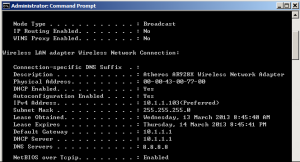
Next try to determine your own ip address, the way I is to open up a command promt and key in “ipconfig /all” which will show quite a lot of information on your system. Like this screen below
ipconfig-all

It tell you that your own IP address is 10.1.1.103 and the gateway is 10.1.1.1
From here, we can try to do a ping on your own IP address to make sure that you can ping via
 ping 10.1.1.103
if the result show reply from 10.1.1.130: xxxx xxxx xxxx
that means that we are communicating with ourself then next we can further verified if we can talk to the gateway which is also the router via

ping 10.1.1.1
if the result show reply from 10.1.1.1: xxxx xxxx xxxx

that means that we know that we can talk to the router. Then we can try pinging further like 8.8.8.8 which is the Google DNS server via

ping 8.8.8.8

if the result show reply from 8.8.8.8: xxxx xxxx xxxx

then we should be able to connect to the internet.

If result show time out or destination host unreachable. We then can conclude we have problem it some stages depend on which ping stages fail. We can isolate out the problem and concentrate on what cause it and solve it. Being network card fail or cable  has problem or router faulty all are easily determine via a simple ping test.

Regards
Hickural